
How to convert PDF to PowerPoint
pdf2ppt.com converts a PDF file into an editable PowerPoint deck (.pptx). Each PDF page becomes one slide. Useful when you have a PDF version of a presentation but not the original .pptx and you need to edit slides — change text, replace images, fix typos, restructure.
Step 1: Upload
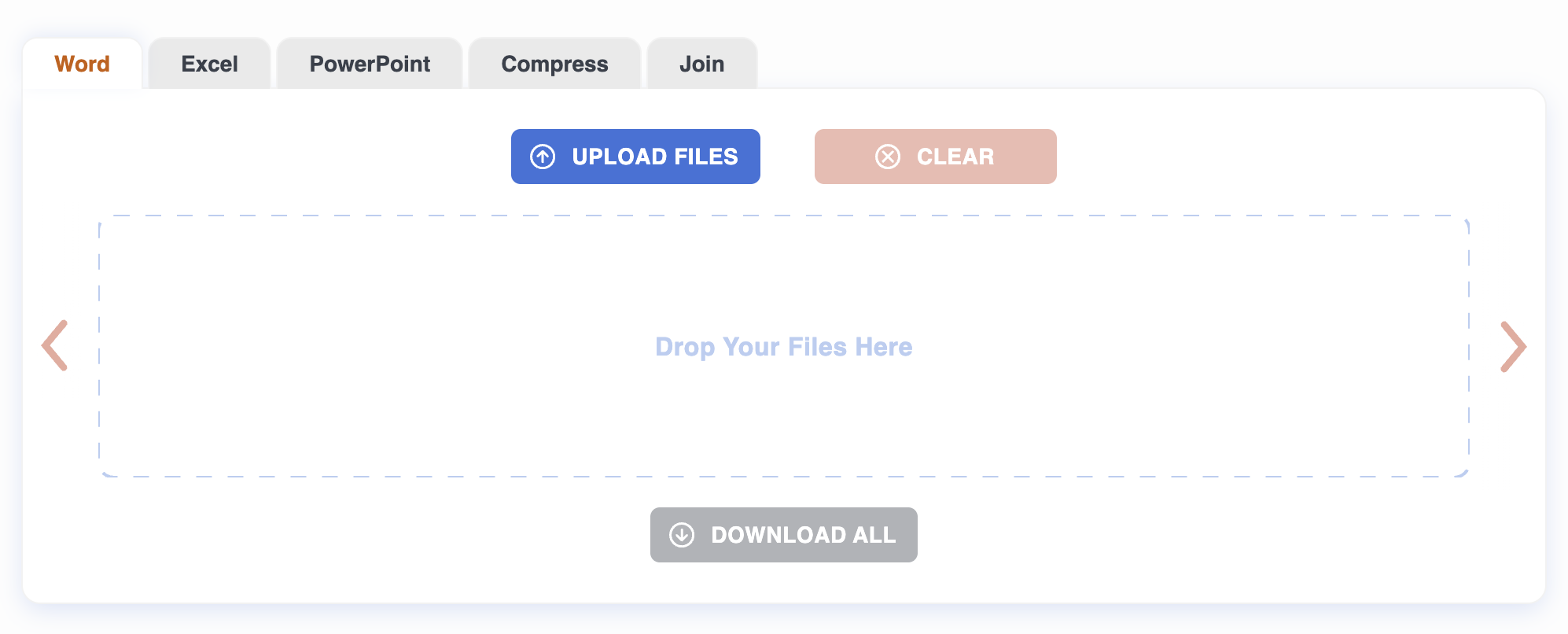
Drag a PDF onto the page, or click to pick one. Up to 20 files at once, 50 MB each. Conversion starts automatically.
Step 2: Wait
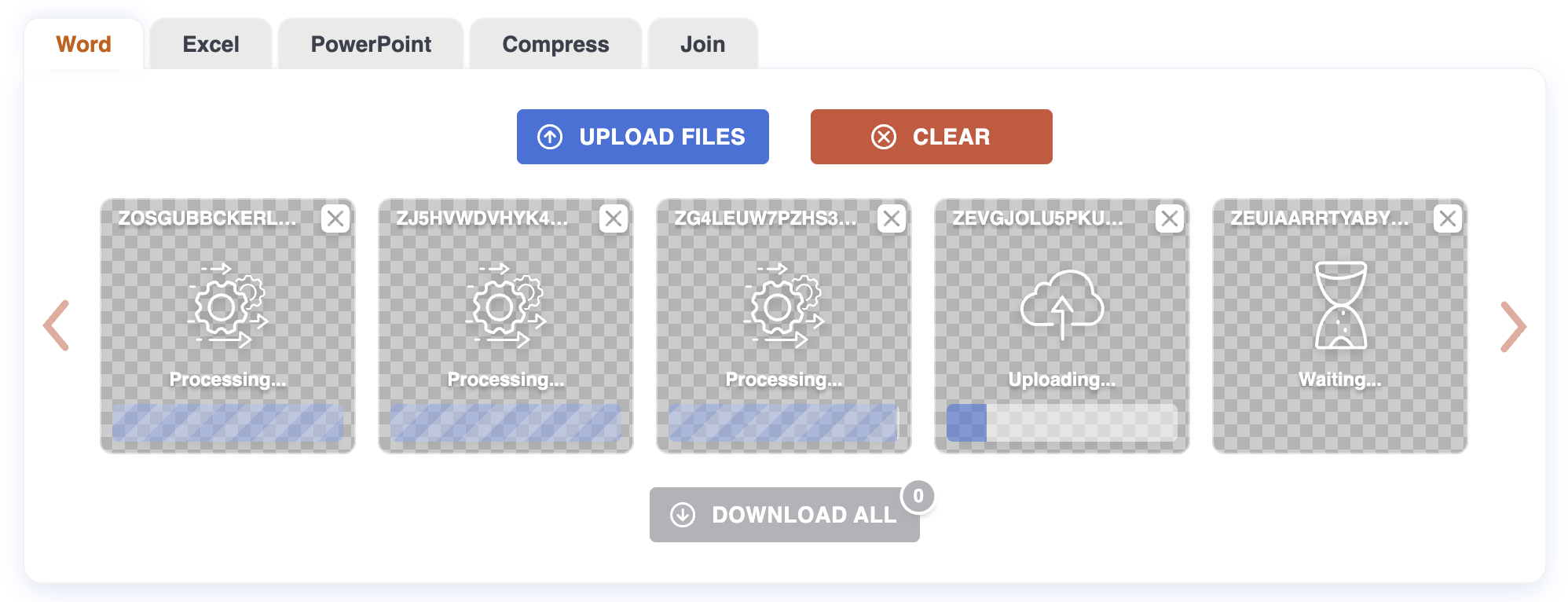
For each PDF page the converter detects the layout (title, bullets, image, two-column body, etc.) and rebuilds it as a slide. Text becomes editable text boxes; images become embedded images. Slide size matches the source page so nothing gets cropped.
Files are processed in parallel.
Step 3: Download
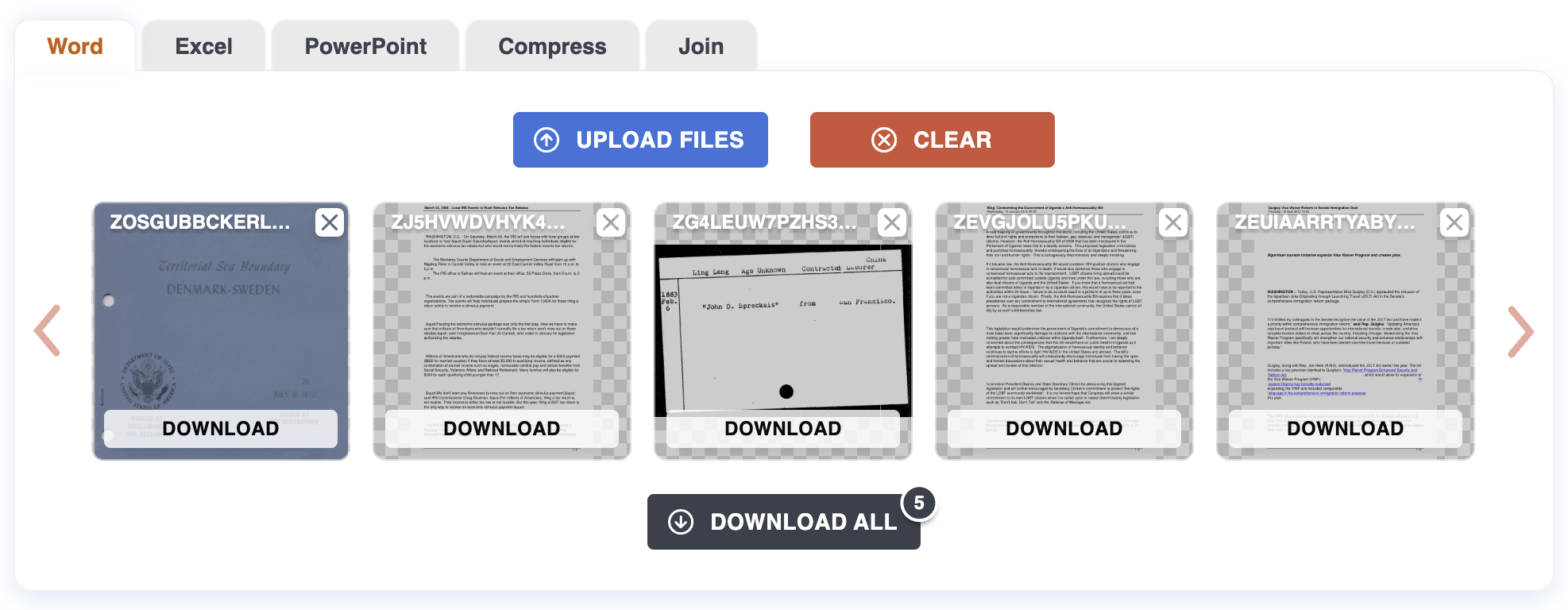
Each finished file gets a Download button. For a batch, use "Download all" to grab everything as a ZIP. The .pptx opens in PowerPoint, Keynote, Google Slides, and LibreOffice Impress.
Tips
- PDFs exported from PowerPoint or Keynote convert best. The slide structure is already there; the converter mostly rebuilds it.
- Slide size follows the source page size. A PDF made from a 16:9 deck stays 16:9; a PDF made from an A4 document gives you A4-shaped slides. Resize the deck in PowerPoint if you want a different aspect ratio.
- Text is editable — you can fix typos and update numbers without retyping.
- Charts come back as images if they were rendered to images in the PDF. The original chart with its data series only exists in the source .pptx.
What won't work cleanly
Heavily designed pages. Complex overlapping shapes, transparency effects, and print-layout artifacts convert with correct content but a slightly looser look. PowerPoint can't represent every PDF rendering trick.
Scanned PDFs. No text means each slide is just an image of the page. Run OCR first if you need editable text.
Custom fonts not installed locally will substitute to a default like Calibri. Install the font, or accept the substitution.
Password-protected files need the password removed first.
Privacy
Files are uploaded over HTTPS and processed on our server. Both the original PDF and the resulting .pptx are deleted automatically after one hour. No account required.
For more on how PDF-to-PowerPoint conversion works, see the Blog.